What is kerning? 3 ways it transforms your typography
 Save
SaveKerning is the adjustment of space between individual pairs of letters to create balanced, readable text. Unlike overall letter spacing, kerning targets specific combinations where default spacing looks awkward—such as 'AV' or 'To'—and tightens or loosens them for optical harmony. After reading this article, you'll understand how kerning differs from other spacing controls, when to adjust it and how to apply it to strengthen your brand's printed and digital materials. Black Dog Design explores the principles that make typography work at every scale.
Why kerning matters for readability
Poor kerning creates visual gaps or collisions that slow the eye and disrupt the reading flow. Letters may appear to lean away from one another, or they may crowd so closely that shapes merge. Both outcomes weaken legibility, and legibility underpins every successful piece of communication—from a business card to a website header.
Well-judged kerning lets the reader move through a word as a unified shape rather than a sequence of isolated glyphs. The improvement is subtle at body-text sizes but becomes critical in headlines, logotypes and any setting where individual letterforms occupy significant space. A logo kerned carelessly looks unfinished; the same mark kerned with attention signals care and professionalism.
Kerning, tracking and leading: understanding the differences
Kerning adjusts space between two specific letters. Tracking adjusts spacing uniformly across a range of characters—a whole word, line or paragraph. Leading controls the vertical distance between lines of text. All three affect how text looks and reads, but each operates at a different level of granularity.
You apply tracking when you want a headline to feel open and airy, or when you need to fit a line of copy into a fixed width without changing the typeface or size. You adjust leading to prevent ascenders and descenders from colliding across lines, or to give breathing room to dense paragraphs. Kerning, by contrast, fixes individual problems: the 'T' and 'o' in 'Today' sitting too far apart, or the 'V' and 'a' in 'Value' appearing disconnected.
When to prioritise each control
Set leading first, establishing the vertical rhythm of your text. Then apply tracking if the overall density needs adjustment. Kern last, once the broader spacing decisions are settled. This sequence prevents wasted effort—global changes to tracking or leading can undo careful kerning work if applied afterwards.
Letter pairs that demand attention
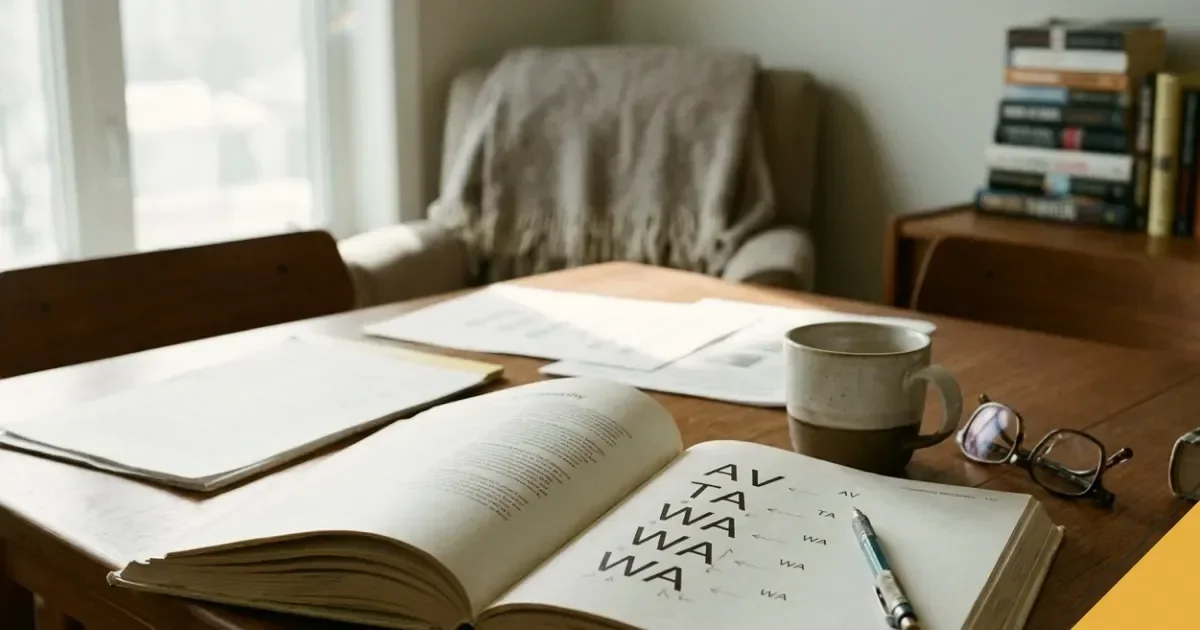
Certain combinations consistently require manual adjustment because their shapes create uneven optical space. Capital letters followed by lowercase letters with bowls or diagonals—'To', 'Tr', 'Tu'—often need tightening. Pairs of capitals with angled strokes, such as 'AV', 'LT' or 'WA', frequently look too far apart when set with default spacing.
Punctuation introduces its own challenges. A full stop or comma following a capital 'T' or 'V' can float in a void unless you close the gap. Quotation marks and apostrophes often sit too far from the letters they accompany, especially with serif typefaces.
The specific pairs that need work depend on the typeface. A condensed sans-serif with tight default spacing may require loosening rather than tightening, while a wide serif may leave large gaps in combinations that narrower fonts handle comfortably. Build your eye by setting a few test words—'WAVE', 'Typography', 'To.'—and comparing them at display sizes.
How to adjust kerning in practice
Most design and layout software provides kerning controls through a keyboard shortcut or a dedicated panel. In Adobe applications, you place the cursor between two letters and use Alt/Option + arrow keys to nudge them closer or farther apart. The measurement unit is typically a fraction of an em, and small increments—five or ten units at a time—are usually sufficient.
Start by setting your text at a size where spacing problems become obvious. Headlines and logotypes benefit from display sizes during adjustment, even if the final output will be smaller. Flip the text upside down or view it as a mirror image to separate letter shapes from word meaning; this forces you to judge spacing optically rather than letting familiarity override what you see.
Print a proof or view the design on the device where it will appear. Screen rendering and ink spread on paper both affect perceived spacing, and a setting that looks balanced on-screen may read too loose or too tight in its final context.
Trusting your eye over the numbers
Kerning is an optical exercise, not a mathematical one. Equal measured space does not produce equal visual space when letter shapes vary. A round 'O' beside a straight 'I' creates different perceived gaps than two straight stems side by side, even when the software reports identical spacing values. Adjust until the rhythm feels even, not until the numbers match.
Typefaces with built-in kerning pairs
Professional fonts include kerning tables—sets of spacing adjustments applied automatically to hundreds or thousands of letter combinations. When you type 'WAVE' in a well-made typeface, the software reads the kerning data and tightens the 'WA', 'AV' and 'VE' pairs without manual intervention.
The quality and completeness of these tables vary. Fonts designed for text setting at small sizes often include extensive kerning data because readability at nine or ten points depends on it. Display faces may offer fewer pairs, assuming the designer will adjust spacing by hand at larger sizes. Free or poorly produced fonts sometimes lack kerning tables altogether, leaving every pair at the same default width.
Even with robust built-in kerning, certain contexts require manual adjustment. Vector graphics software and layout programs let you override automatic kerning when a headline, tagline or logo demands tighter control. Brand identity work, where a wordmark may appear across dozens of applications, often warrants the extra attention.
Kerning across different media
Printed materials and digital screens handle type differently, and kerning decisions made for one medium may not transfer cleanly to the other. Offset printing allows fine control and high resolution, so tight kerning in a brochure or business card usually reproduces faithfully. Low-resolution screens, particularly older displays or smaller devices, may blur or lose detail when letters sit too close together.
Web fonts rely on the browser and operating system to render kerning data, and older browsers or budget devices may ignore it entirely. Responsive designs add another layer of complexity: a headline kerned beautifully at desktop width may reflow awkwardly on a mobile screen, or a logo optimised for a large homepage banner may look cramped when scaled down for a favicon.
Test your kerning in context. View the design on multiple devices, print a proof on the paper stock you'll use and check legibility at the smallest size the text will appear. If a single setting cannot serve all applications, prepare separate versions with adjusted spacing for each medium.
When to accept compromise
Not every piece of text justifies extensive kerning work. Body copy in a report or a webpage benefits from well-made fonts with solid automatic kerning, but manual adjustment at small sizes rarely improves readability enough to justify the time spent. Focus your effort on high-visibility elements—logos, headlines, calls to action—where spacing directly affects the reader's first impression.
Common kerning mistakes and how to avoid them
Over-kerning—tightening letter pairs until they touch or overlap—is the most frequent error. Letters need breathing room to remain distinct, and collisions between strokes create dark spots that draw the eye for the wrong reasons. If you're uncertain whether a pair is too tight, loosen it slightly and compare.
Inconsistent kerning across a project undermines visual coherence. A headline on page one with carefully adjusted spacing will clash with an equally prominent heading on page five that was left at default settings. Establish your kerning decisions early, document them if the project involves multiple designers and apply them systematically.
Ignoring punctuation is another common oversight. A kerned headline loses its polish when a full stop or comma floats half a letter-width away from the preceding character. Treat punctuation as part of the letter pair it follows, and adjust spacing accordingly.
Building your kerning skills
Kerning improves with practice and observation. Study typefaces you admire, paying attention to how professional designers have solved spacing problems in headlines, posters and packaging. Set your own test words and compare different solutions, keeping notes on which adjustments work and which create new problems.
- Choose a typeface and set a headline at a large size—at least seventy-two points.
- Identify letter pairs that look uneven, marking them on a printed proof or a screenshot.
- Adjust each pair in small increments, stepping back to assess the overall rhythm after every change.
- Flip the text upside down or view it in a mirror to check optical balance without reading the words.
- Print or preview the final version in the medium where it will appear, making further adjustments if needed.
Online kerning games and exercises can accelerate learning by presenting random letter pairs and scoring your adjustments against professional solutions. These tools build muscle memory and train your eye to spot uneven spacing quickly. Treat them as practice rather than absolute rules—real projects involve typefaces, sizes and contexts the games cannot anticipate.
Why kerning strengthens your brand
Typography is often the first element a potential customer sees, whether on a website, a sign or a piece of print. Poor kerning signals carelessness, while clean, balanced spacing communicates professionalism and attention to detail. In competitive markets, these signals matter.
A logo is a brand's most visible asset, reproduced on everything from lorry livery to mobile apps. Kerning that looks acceptable at one size may fail at another, so invest the time to optimise spacing for every major application. The same principle applies to taglines, headlines and any text that represents your organisation in high-stakes contexts.
Consistency across touchpoints reinforces recognition. When your printed brochure, website headers and social media graphics all use the same carefully kerned typography, the cumulative effect is a cohesive, confident identity. Small details compound.
Download PDF: Kerning Essentials: A Quick-Reference Checklist PDF, 29 KB
Frequently asked questions
What is the difference between kerning and letter spacing?
Kerning adjusts space between specific pairs of letters, targeting combinations that look uneven with default spacing. Letter spacing—also called tracking—changes spacing uniformly across a range of characters, affecting entire words or paragraphs rather than individual pairs.
How do I know when kerning is too tight?
Letters are too close when their strokes touch, overlap or create dark spots that distract the eye. Print a proof or view the text at its final size—if individual letters lose clarity or the word becomes harder to read, loosen the spacing slightly and reassess.
Do all fonts need manual kerning adjustments?
Professional fonts include automatic kerning data for common letter pairs, so body text rarely needs manual work. Headlines, logos and display typography often benefit from hand-tuning because spacing problems become more visible at larger sizes.
Can I adjust kerning in word processing software?
Word processors typically offer basic tracking controls but lack precise kerning tools. For fine adjustments between individual letter pairs, use dedicated design software such as Adobe InDesign, Illustrator or Affinity Publisher.
Which letter pairs most often need kerning?
Capital letters followed by lowercase letters with curves or diagonals—'To', 'Tr', 'Va'—and pairs of capitals with angled strokes such as 'AV', 'WA' or 'LT' frequently require tightening. Punctuation following letters with overhangs also demands attention.
Does kerning work the same way on websites as in print?
Browsers and operating systems render kerning data differently, and older devices may ignore it. Test web typography on multiple screens and accept that some fine-tuning visible in design software may not reproduce exactly online. Focus manual kerning on logos and key headlines where control matters most.